Part 1: Alerting in Microsoft Azure

One of the key principles in managing your own applications or infrastructure is to be able to alert on important metrics.  These metrics may be server-based, such as CPU usage or free disk space, or at an application level, such as slow response times, high throughput from a specific region etc.

Microsoft Azure’s monitoring and alerting methods allows us to query almost any metric that is being gathered, set thresholds and react to that threshold being breached. As of this post, Azure Monitoring allows us to send emails, send SMS messages, trigger webhooks, initiate an Azure LogicApp or even integrate with an ITSM tool.

In this post I’ll walk through the terminology used in Azure alerting, as well as setting up a simple email alert based on a resource metric.

Monitor – Somewhat confusingly, Azure has a resource called Monitor, which is the hub for all your monitoring needs.  From here you can see open alerts, the metrics you can query on, as well as get access to Action Groups

Action Groups – These are the definitions of what you want to happen when an alert is triggered.  It is here that you define who to email or text, which LogicApp to start etc.  Action groups can be shared across multiple monitor checks

Log Analytics – Previously called OMS (and often still referred to as OMS within the Azure portal) Log Analytics is the centralized location for all log and diagnostic data coming from Azure and non-Azure resources.  The following image, taken from Microsoft Documentation, illustrates this perfectly;
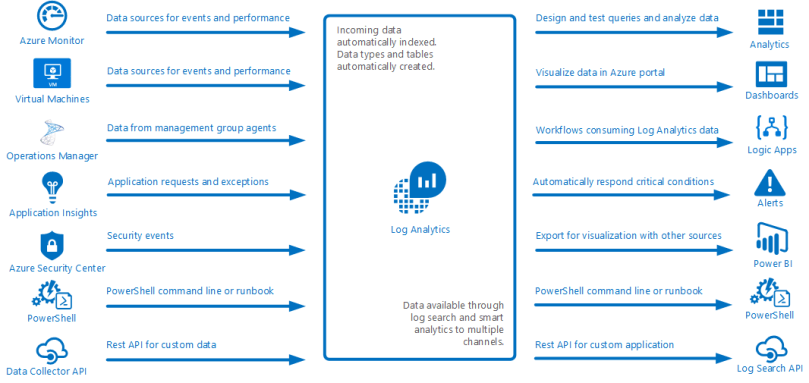
collecting-data

Creating an Azure Monitoring Alert

Create a Log Analytics resource

First you will need to create a Log Analytics resource, if you don’t already have one.  To start with the Free tier will be sufficient, but as you add more inputs, you need to review the data usage to ensure you can capture everything.  Typically I suggest creating a specific Resource Group for all Monitoring resources.  Doing this keeps all logical items together, and it also means one can generally export the ARM template for this Resource Group and store it as a backup, or a template, for the future.

Send data to Log Analytics

Most resources on the Azure platform make it simple to ship diagnostic data to Log Analytics, although the terminology used between resources is sometimes a little different.

In this example, browse to a Virtual Machine, then browse to the Diagnostics settings option in the left panel of the blade. From here you can see an overview of all the types of data that can be shipped;

  • Performance counters
  • Log files
  • Crash dumps

As well as optionally outputting data to Application Insights.

To begin with, browse to the Performance Counters tab and ensure that CPU is checked.  You can enable others as well, but we’ll just be querying off the CPU data for now

From this point, browse back to your Log Analytics resource, find Virtual machines in the left panel of the blade, then find your VM.  After clicking on it, a small diagnostic window will appear, showing you whether the resource is connected to this OMS/Log Analytics workspace or not.  If it is not yet connected, click the Connect button, and within a few minutes the Log Analytics workspace will be receiving the counters selected above.

Creating the alert

Creating the first alert will consist of two pieces – defining the actual monitor check, as well as creating the Action Group that defines what to do when the alert is triggered.

From within your Log Analytics workspace, click Alerts in the left panel of the blade.  This will show you all the alerts for this workspace – of which there will currently be none.

Click the New Alert Rule button at the top of the Alerts blade, and you will be taken to a wizard-like interface that will provide guidance in creating the monitor.

The first thing to do is select a target – depending on how you navigate to this screen, a resource may already be selected – click on the Select Target button, then find your Virtual Machine (you may need to change the Resource Type to Virtual Machines to find it).

After selecting your target, you can add criteria to the alert.  In this instance, we are limited to the criteria that the Azure portal has defined for us (see an upcoming Part 2 where we can get more granular) .  For now we will alert based on CPU usage, so select the Percentage CPU metric.  This will present a graph of that metric for the last 6 hours (by default), as well as the logic options for the alert.

2018_04_22_16_57_26_Configure_signal_logic_Microsoft_Azure

The Alert Logic section if fairly self explanatory, however the Evaluate based on is a little more nuanced.

The first dropdown will determine the amount of data to return from the query – in this case, it is saying ‘give me the last 5 minutes worth of data for CPU percentage utilization’.  The second query will determine how often to run the logic.  In the image above, the alert will trigger if, at any point over the last 5 minutes, the average CPU utilization has been above 10%.

When you are happy with your alert thresholds, you can click the Done button, and return to the main alert blade.

Next you can define details for the alert, such as Name, Description and Severity.

Finally you assign what to do when an alert triggers.  This is managed using Action Groups, which can contain one or more of Email addresses, webhooks, ITSM links, LogicApps or automation runbooks.  The configuration of each of these is fairly straightforward, and I’ll be covering LogicApps in a future blog post, so I won’t go into detail on how to configure them here.

Once the Action Group is defined and selected, click Create Alert Rule and your rule will generate in the background and become active immediately.
 

Azure Application Insights

Application Performance Monitoring tools are a necessity with modern websites where there distributed dependencies, multiple servers and front end frameworks doing a large amount of processing.  There are a couple of big players in the market; New Relic and AppDynamics have been maturing into well rounded products for a few years, but Azure Application A is catching up quickly, and with more of a focus on .NET applications (although Java and Node.js are also supported), as well as integration with the greater Azure platform, it can provide a more rounded view of your application’s performance.

Application Map

application_map_microsoft_azure

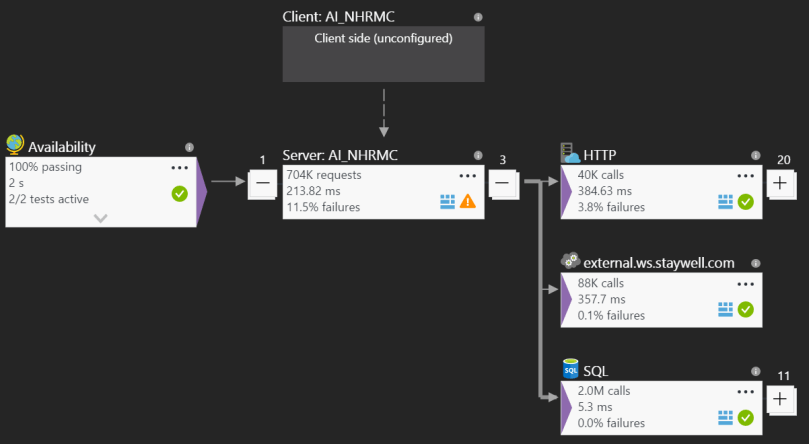
Knowing what makes up your application can be complex, and often times may request unexpected resources.  The Application Map gives a graphical representation of requests coming into and out of your application, including outgoing HTTP requests, SQL requests, WCF service calls and more.  You get a high level view of any specific points that may be encountering issues, as well as average response times and the throughput – each of which can be early indicators of future problems, or even just the realization of organic growth of the application.

Live Metrics Stream

live_metrics_stream_microsoft_azure

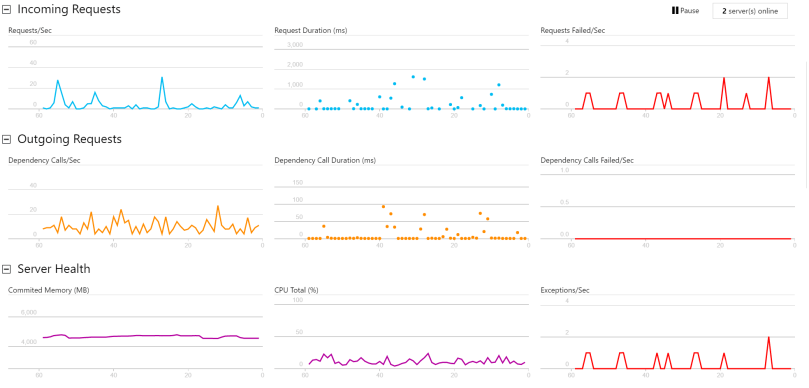
Once you have deployed a new version of your application, you want to know if performance has changed, as well as any sneaky bugs that may have been introduced that are only noticeable with real world traffic.  The Live Metrics Stream gives you an up to the second view on the traffic going through your servers.  Out of the box it will provide information on the number of requests being served per second, as well as their duration and failure rates.  You can also see the traffic leaving your server to the dependencies notes above, and finally an aggregate view of the Memory, CPU and Exceptions being handled by your servers.  All this information can provide vital diagnostics on whether to pull a new release or not, as well as whether further investigation is required.

Smart Detection

One of the best tools within Application Insights is Smart Detection.  This is a completely passive service that requires no configuration, but will silently monitor your application data and proactively alert you via email if there is something unexpected happening.  This includes a sudden spike in error messages, or a change in the pattern of client or server performance.  These kinds of alerts are tremendously useful, as they mean you’re not relying on someone within your company, or worse, your client, telling you that something isn’t working correctly.

Log Analytics

The Application Insights team has provided a number of log utility extensions that integrate with Application Insights, to be able to get a centralized view of logs, which can be used for post-mortem analysis of a problem, or even for generating live dashboards. One of these extensions, which is hugely useful for Sitecore, is the log4net appender.  It works as an additional appender for the one shipped with Sitecore, and allows you to send your log files to Application Insights, as well as logging to disk.

Other features

As with any good APM tool, it is also possible to dig into data for slow pages, common exceptions, even the browser performance, if you’ve enabled browser tracking via a javascript beacon.

Automating New Servers

Provisioning a new server used to be a long, expensive and drawn out process, including shipping new hardware, installing it in the datacenter and cabling before even powering the box on to configure the software element.  This took a step forwards with the adoption of using virtual machines to mitigate the new hardware aspect, but still required specialist knowledge to configure the VM (especially if it was an on-premises server farm).  The explosion in Cloud Computing, with offerings from Amazon, Microsoft, Rackspace and others, means that it is possible to get up and running with a new Virtual Machine in a matter of minutes, with very little technical expertise required.  Investing relatively little time up front can automate the remaining configuration and provide an interface that means ownership of an entire process can be delegated to teams of varying skill sets.  This also provides the autonomy required for an Agile process to succeed.

In this post I’m going to walk through some specific aspects of Microsoft’s Azure platform and how they can be utilized to spin up a new server with all the dependencies to run a Sitecore site.

The Azure Portal is a great UI for managing individual resources, however when starting to build out a new environment, or make change in bulk, it is not the best tool.  This is where Azure Powershell comes into its own.  There are many ways to integrate with Azure APIs – they are just REST endpoints after all, and if you’re more comfortable writing C#, there are SDKs on NuGet, but powershell lends itself to a DevOps culture as it spans the programming knowledge of a Development team, while also incorporating the knowledge that is embedded in Ops team.

The Azure Resource Manager is the ‘new’ way of creating and managing resources created in the Azure Cloud.  ARM templates are a way of defining a single resource, or an interlinked number of resources together in a JSON format.  This allows you to create anything from a single public IP up to an entire environment, with multiple servers, load balancers, SQL PaaS instances and so on.   The Azure Portal will even generate a file based on existing resources that can then be parameterized to be more generic.

An ARM template is made up, mostly, of 3 properties that take an array of objects;

  • Parameters – values passed into the template to customize it for the resource being deployed.
  • Variables – often made up of concatenations of parameters or the result of functions, variables simplify the overall structure of the template.
  • Resources – the definition of the resources to be created. These can reference variables and parameters, as well as other resources.

When defining a Virtual Machine, it is important to consider the cascading dependencies that are required – at the most basic level, you’ll need a storage device for the OS and a network interface.  The network interface will need public and private IP addresses as well as a Network Security Group (essentially a representation of firewall rules) and subnet.  This could also be made to be more complex to include Availability Sets, multiple disks and NICs etc.

Many items will be unique and distinct for a new VM – the Disks, IPs and NICs for example would never be shared between VMs.  A Network Security Group or a subnet, however, could well be shared across a number of machines.  At this point it is wise to decide if you will manage your infrastructure fully through ARM templates, through the portal or as a hybrid approach.  The reason this decision is important is because when deploying a resource via the ARM templates, if a dependent resource already exists in the Azure environment, it will be modified to match the template.  If you consider a Network Security Group that is defined in an ARM template, if someone goes and modifies that Group via the portal, and they do not update the template, the next time the template is used to create a resource, the change will be reverted.

A simple workaround for this is to not define all dependent resources in the ARM template, but to reference some things by ID. While the template is JSON formatted, it is possible to reference standard functions that are understood by the ARM infrastructure.  One of these is the resourceId() function, which accepts two parameters – the type of resources, and the name.  This will return the Azure ID for that resource, which can be used as a reference for new resources.

This simplifies the creation of a single server, and gives massive efficiency improvements when creating multiple servers.  There are also a large number of extensions that can be applied that automate many post-initialization tasks.  One of the most helpful out of the box is the JsonADDomainExtension which, as the name implies, connects the server to a Domain by providing a Domain Admin account – these can, and should, be parameters passed into the script.

It is also possible to enable custom extensions which can run a file stored in blob storage – this could be another Powershell script, an executable or a batch file.  The script/executable is downloaded and launched directly on the server, so it is possible to write scripts as if you were running them locally. We use this to add an AD group to the local Admin group on the server, install Windows features, set the time zone, and install common tools via chocolatey.

Once you have your json template defined, creating the new resources is a trivial task;

$resourceGroupName = "<your resourc egroup>"
$templateFilePath = "<Path to your json template>
$params = @{
     storageAccountName="<your account name>";
     adminPassword="a$ecurepa$$word";
     adminusername="<admin username>";
     vmName="<VMName>";
     vmSize="<VMSize>"
}
New-AzureRmResourceGroupDeployment -ResourceGroupName $resourceGroupName -TemplateFile $templateFilePath -TemplateParameterObject $params -Mode Incremental -Name $vmName;

These values can be, generally, anything you want them to be.  The exception to this is the vm size, which must match a value from the currently offered list of VMs, found here

Restoring Standardized Backups

As I’ve mentioned before, enabling scrum teams to be self-sufficient is vital to increasing velocity – if there is a need for a new environment, it should be a trivial task to get one created, not a red-tape filled nightmare where knowledge is centralized on a handful of people.  However, it is also unrealistic to believe that all developers will have all the knowledge to complete this task – one would have to be familiar with IIS, SQL, DNS, whatever cloud offering is being used (if any) not to mention how all these elements fit together to be able to troubleshoot something not working.

Fortunately, with a little standardization and access to a Powershell prompt, it is possible to automate almost all of the steps required.  In this post I’ll go over the main parts of what is required to get a new  Sitecore site up configured and running.

Breaking down the entire process, we will need to do the following things (at least, there may be more for your specific scenario):

  • Create the website folders under inetpub and setting permissions
  • Create the website definition in IIS
  • Restore the database backups
  • Update connection strings
  • Apply a patch file to update the data folder

Creating website folders

New-Item -ItemType "Directory" -Path "$inetpubRoot\$siteName"

$Acl = Get-Acl "$inetpubRoot\$siteName"
$Ar = New-Object System.Security.AccessControl.FileSystemAccessRule("BUILTIN\IIS_IUSRS", "FullControl", "ContainerInherit,ObjectInherit", "None", "Allow")

$Acl.SetAccessRule($Ar)
Set-Acl "$inetpubRoot\$siteName" $Acl

if((Test-Path "$inetpubRoot\$siteName\Website") -eq $false) {
     New-Item -ItemType "Directory" -Path "$inetpubRoot\$siteName\Website"
}
if((Test-Path "$inetpubRoot\$siteName\Data") -eq $false) {
     New-Item -ItemType "Directory" -Path "$inetpubRoot\$siteName\Data"
}

In the code above there are 2 pre-defined variables – $inetbubRoot, which is that path to where you want the website created – C:\inetpub\wwwroot when working locally – and $siteName, which is the folder you want created.

There are also a couple of lines relating to giving the IIS_IUSRS built in account Full Control over the folder we just created.  Full Control gives Sitecore the ability to create folders required, as well as creating log and index files (among many others).

Creating IIS definitions

New-Item IIS:\AppPools\$siteName -Force 
New-Item IIS:\Sites\$siteName -bindings @{protocol="http";bindingInformation="*:80:$siteName"} -physicalPath "$inetpubRoot\$siteName\Website" -Force 
Set-ItemProperty IIS:\Sites\$siteName -name applicationPool -value $siteName -Force

Here we make use of some IIS Powershell cmdlets to create a new application pool, create a new site definition and bind the desired hostname (also defined by the $siteName variable for consistency between folder structure and IIS), and finally associate the site definition to the application pool.

Restoring database backups

This step is likely to be quite specific to your particular setup.  In this example, we are restoring .bacpac files to Azure SQL PaaS, however you may be restoring to an On Prem instance of SQL Server, or restoring .bak files.  You could even take this further and, if using Azure SQL, could associate the restored database with an Elastic Pool.

 if((Get-AzureRmSqlDatabase -ResourceGroupName $resourceGroupName -ServerName $sqlServer | Where-Object {$_.DatabaseName -eq $dbName}).count -eq 1) {
     Remove-AzureRmSqlDatabase -ResourceGroupName $resourceGroupName -ServerName $sqlServer -Databasename $dbName -Force | Out-Null
}
New-AzureRmSqlDatabaseImport -ResourceGroupName $resourceGroupName -ServerName $sqlServer -DatabaseName $dbName -StorageKey "" -StorageKeyType "StorageAccessKey" -StorageUri $path -Edition Premium -ServiceObjectiveName P4 -DatabaseMaxSizeBytes 300000000 -AdministratorLogin  -AdministratorLoginPassword

Working with Azure is a simple task most of the time, and restoring backups is no exception, albeit with one quirk – it is not possible to overwrite a database, you have to remove it and re-import.  The code above will get a list of all databases on the provided server and check if you’re trying to overwrite something that already exists.  If it does, it will remove it first, then move on to the import.

Updating connection strings

This is probably one of the quirkiest parts of the restore process – it requires that you pass the password of your SQL user in as plain text, so it can be placed in the connection string, and managing the different types of connection strings (‘vanilla’ sql, Entity Framework, mongo) can also be a challenge.

Part of the solution to managing different connection strings is this block of Powershell

if($currentValue -match "^User Id\=")
{
     #Set standard connection string
}


if($currentValue -match "^mongodb:")
{
     #Set mongo connection string 
}

if($currentValue -match "^metadata\=res:")
{
     #Set Entity Framework connection string
}

Again, standardization of your database names can really help here to link the connection string node to the database.

Patch file

The final piece of the puzzle to restoring a Sitecore instance is to create a patch file that contains the new data folder, and potentially setting a hostName attribute for the default entry.  Again, depending on your specific setup, this may be harder to accomplish, but taking a simple Sitecore instance with one site defined, we can use a template patch file and a few lines of Powershell to complete the task.

$xml = [xml]$devserverxml
$ns = New-Object System.Xml.XmlNamespaceManager($xml.NameTable)
$ns.AddNamespace('patch','http://www.sitecore.net/xmlconfig/')
$nodes = $xml.SelectNodes("/configuration/sitecore/sc.variable[@name='dataFolder']/patch:attribute",$ns)
foreach($node in $nodes) {
     $node.InnerText = $dataFolder
}
$nodes = $xml.SelectNodes("/configuration/sitecore/sites/site[@name='website']/*")
foreach($node in $nodes) {
     $node.InnerText = $hostname
}
$xml.save($path)

This will load a file where the path is defined in $devserverxml into an XML object that can be traversed and updated.


Hopefully this article has helped as a starting point to automate some of the tedious tasks we face as developers.  As time goes on I’ll add new posts with more examples of how we’ve tackled some of the more inconvenient automation problems

Sitecore Backup Scripts

When working with any system one of the biggest challenges is having quick and simple access to production data.  This is even more significant when developing for a CMS, as the content is constantly changing.  Having recent backups available is vital for many reasons, such as having an accurate test environment for new features, being able to reproduce a bug found in production or even just setting up a new local instance for development.

Automation is key in the modern IT world – any repetitive task that takes a significant amount of time or effort is a candidate for automation.  IT Ops teams are invariably ahead of development teams with this as they need to provide backups of production systems for disaster recovery scenarios, so taking their knowledge and applying it to a developer’s problem seems appropriate.

What we have developed is a standardized approach to backups for all sites;

  • Create archives of the website and data folders, excluding unnecessary files
  • Use the SqlPackage.exe application to back up databases to .bacpac files
  • Store these in dedicated containers in Azure blob storage

This results in a discrete container of all the required fields to create a new running instance.  This standardization means it is possible to write scripts that are generic enough to get the backed up data and restore it across any number of completely independent sites, thus increasing productivity.

When backing up the Website and Data folders, there is a lot of ‘runtime’ data this isn’t required for a clean restore – logs, diagnostics, App_Data and temp combined can run up many GBs of transient data that adds bloat to a backup.  The sitecore_analytics_index can also grow to a massive size, and could be excluded if not required.

SqlPackage.exe is a utility that is shipped with many different products, including Visual Studio and SQL Server, as well as part of stand-alone utilities.  For a cloud-centric company, SqlPackage is an indispensable utility that enables the automation of moving data between on premises SQL Server and Azure SQL PaaS.  Simply passing a connection string, a filename and some basic parameters, is all it takes to export a database, and with access to the ConnectionStrings.config file in your sitecore solution, everything is right there for. In fact, getting an array of connection strings is a fairly trivial snippet of Powershell;

$connectionstrings = @()
$connectionStringsFilePath = Join-Path -Path $webSiteRoot -ChildPath "Website\App_Config\ConnectionStrings.config"
$xml = New-Object System.Xml.XmlDocument
[xml] $xml = Get-Content $connectionStringsFilePath
$xml.SelectNodes("/connectionStrings/add") | % { 
if(-not($_.connectionString.StartsWith("mongo"))) { return $_ } } | % {
     $connectionstrings += $_.connectionString
}

 You can then take this array and use it either with SqlPackage.exe or raw T-SQL to create the required backups and transfer them to a centralized repository.

Among other things to consider are;

  • Do you need to transfer the analytics data from Mongo?
  • Do you really need to transfer the reporting databases? Is this just more bloat to transfer and store?
  • How much are your bandwidth costs? If your VMs and Storage are within Azure, you won’t pay for data transfer, but if you straddle multiple cloud providers, you may get billed pretty heavily – remember to weigh the cost/benefit of having regular backups.