Part 1: Alerting in Microsoft Azure

One of the key principles in managing your own applications or infrastructure is to be able to alert on important metrics.  These metrics may be server-based, such as CPU usage or free disk space, or at an application level, such as slow response times, high throughput from a specific region etc.

Microsoft Azure’s monitoring and alerting methods allows us to query almost any metric that is being gathered, set thresholds and react to that threshold being breached. As of this post, Azure Monitoring allows us to send emails, send SMS messages, trigger webhooks, initiate an Azure LogicApp or even integrate with an ITSM tool.

In this post I’ll walk through the terminology used in Azure alerting, as well as setting up a simple email alert based on a resource metric.

Monitor – Somewhat confusingly, Azure has a resource called Monitor, which is the hub for all your monitoring needs.  From here you can see open alerts, the metrics you can query on, as well as get access to Action Groups

Action Groups – These are the definitions of what you want to happen when an alert is triggered.  It is here that you define who to email or text, which LogicApp to start etc.  Action groups can be shared across multiple monitor checks

Log Analytics – Previously called OMS (and often still referred to as OMS within the Azure portal) Log Analytics is the centralized location for all log and diagnostic data coming from Azure and non-Azure resources.  The following image, taken from Microsoft Documentation, illustrates this perfectly;
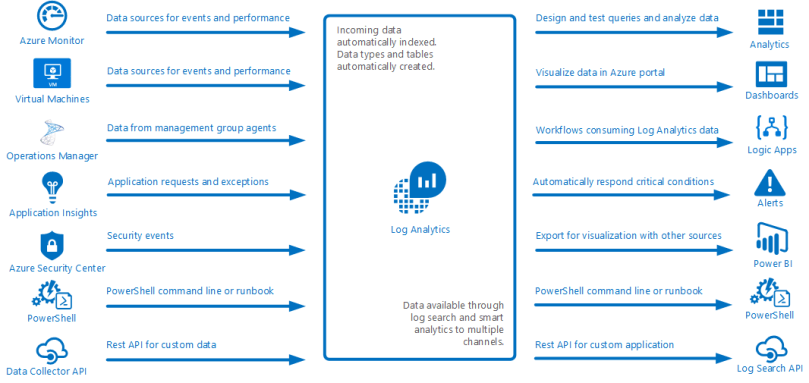
collecting-data

Creating an Azure Monitoring Alert

Create a Log Analytics resource

First you will need to create a Log Analytics resource, if you don’t already have one.  To start with the Free tier will be sufficient, but as you add more inputs, you need to review the data usage to ensure you can capture everything.  Typically I suggest creating a specific Resource Group for all Monitoring resources.  Doing this keeps all logical items together, and it also means one can generally export the ARM template for this Resource Group and store it as a backup, or a template, for the future.

Send data to Log Analytics

Most resources on the Azure platform make it simple to ship diagnostic data to Log Analytics, although the terminology used between resources is sometimes a little different.

In this example, browse to a Virtual Machine, then browse to the Diagnostics settings option in the left panel of the blade. From here you can see an overview of all the types of data that can be shipped;

  • Performance counters
  • Log files
  • Crash dumps

As well as optionally outputting data to Application Insights.

To begin with, browse to the Performance Counters tab and ensure that CPU is checked.  You can enable others as well, but we’ll just be querying off the CPU data for now

From this point, browse back to your Log Analytics resource, find Virtual machines in the left panel of the blade, then find your VM.  After clicking on it, a small diagnostic window will appear, showing you whether the resource is connected to this OMS/Log Analytics workspace or not.  If it is not yet connected, click the Connect button, and within a few minutes the Log Analytics workspace will be receiving the counters selected above.

Creating the alert

Creating the first alert will consist of two pieces – defining the actual monitor check, as well as creating the Action Group that defines what to do when the alert is triggered.

From within your Log Analytics workspace, click Alerts in the left panel of the blade.  This will show you all the alerts for this workspace – of which there will currently be none.

Click the New Alert Rule button at the top of the Alerts blade, and you will be taken to a wizard-like interface that will provide guidance in creating the monitor.

The first thing to do is select a target – depending on how you navigate to this screen, a resource may already be selected – click on the Select Target button, then find your Virtual Machine (you may need to change the Resource Type to Virtual Machines to find it).

After selecting your target, you can add criteria to the alert.  In this instance, we are limited to the criteria that the Azure portal has defined for us (see an upcoming Part 2 where we can get more granular) .  For now we will alert based on CPU usage, so select the Percentage CPU metric.  This will present a graph of that metric for the last 6 hours (by default), as well as the logic options for the alert.

2018_04_22_16_57_26_Configure_signal_logic_Microsoft_Azure

The Alert Logic section if fairly self explanatory, however the Evaluate based on is a little more nuanced.

The first dropdown will determine the amount of data to return from the query – in this case, it is saying ‘give me the last 5 minutes worth of data for CPU percentage utilization’.  The second query will determine how often to run the logic.  In the image above, the alert will trigger if, at any point over the last 5 minutes, the average CPU utilization has been above 10%.

When you are happy with your alert thresholds, you can click the Done button, and return to the main alert blade.

Next you can define details for the alert, such as Name, Description and Severity.

Finally you assign what to do when an alert triggers.  This is managed using Action Groups, which can contain one or more of Email addresses, webhooks, ITSM links, LogicApps or automation runbooks.  The configuration of each of these is fairly straightforward, and I’ll be covering LogicApps in a future blog post, so I won’t go into detail on how to configure them here.

Once the Action Group is defined and selected, click Create Alert Rule and your rule will generate in the background and become active immediately.
 

Sitecore and DevOps: Continuous Integration

Continuous integration (CI) is the process of automating and testing code every tine a developer pushes code to a source code repository.  In a perfect world, this means that every time a developer changes or adds some code, the full suite of regression tests will run, including any new tests, and if they all pass, there’s a good level of confidence that no obvious new bugs have been introduced.  Extreme examples of CI lead to Continuous Deployment, where CI processes can kick off further steps to promote the code through environments to get to production without any more action by a developer or release engineer.

In reality, many organizations are not equipped for this level of Continuous Deployment, and so an interim level of automation is implemented.

In this post I’ll cover a branching model that we have used to great effect at my current company, and how this ties into our CI tool to provide us fast feedback and lower development effort.

The branching model

We use a slight variation on the popular Git Flow model – why not pure Git Flow?  Because of our historical use of SVN and the pain of merging that existed within it.  Since then we haven’t had a need to really fold back into pure Git Flow, and the differences are generally minimal.

At its core, our model has the following branches:

  • master – this is always the current state of live code.  If we need to do a hotfix in a pinch, this is the branch we cut from.
  • develop – this is our integration branch – individual features are merged into this branch, and this branch is used to compile code to deploy to our integration environment
  • release – this is the code that is ready, to deploy to pre-production and production
  • n feature branches – there can be any number of these branches, cut from the release branch that can be merged into develop and release

While we take some shortcuts with this model when doing a greenfield site build, we shift to this model close to launch, and maintain it post-launch as we continue to deliver features and fixes for our clients.

One of the great things about this model is that it allows us a large amount of flexibility to continue to deliver work to the integration environment, while still being choosy about what gets to production.  Typically the feature branches are merged into develop when they are pushed to source control, but are only merged into release when we are due to do a production deploy.

TeamCity and Automated Merges

As I’ve mentioned before, TeamCity is a wonderful tool for implementing a CI pipeline – there are other commercial offerings such as Bamboo, as well as open source tools such as Jenkins, that do much of the same work, however TeamCity is the tool I’m most familiar with.

One of the nicest features of TeamCity is the ability, when using Git or Mercurial, is to attempt and automatic merge of one branch into another under certain conditions.  We use this feature to merge a feature branch into our integration branch, which in turn triggers a build to deploy to the integration environment.  This means that a developer is not required to manually merge in their changes, so they are able to focus more on development, and less about managing branches of code.

It is also possible to configure rules around which branches will be merged, and when.  For example, we can configure TeamCity not to merge any branches if it matches the pattern /incomplete-feature/*, therefore if a developer creates a new branch called /incomplete-feature/helloworld, they can get the benefits of getting the code off of their machine, but not have to worry about it being complete enough to maintain the stability of the integration environment.  If there are unit tests within the solution, it is also possible to run those as a precursor to the merge, which can be configured not to happen if some tests fail, thus maintaining the integrity of the integration branch.


Takeaways

Continuous integration is a great way to speed up the development cycle, get faster feedback on failed tests and increase overall productivity.  However with Sitecore, this level of continual deployment can come with some disadvantages.  Sitecore can be notoriously slow at starting up after a change to the /bin directory – and if you have an active development team, this problem can be exacerbated to the point where it is impossible for the dev or QA teams to verify anything on the integration environment.

Due to this, we have trialed two different ideologies that have had similar levels of success;

  1. Do not build to your integration environment after every commit, but time them for every 2 hours or so.  This gives enough time for most features to be tested without the site slowing to a crawl, but also provides the developers several opportunities during the day to validate their new code
  2. Do builds more often to your integration environment to enable developers to validate their work, but set up a separate environment to read from the same branch of code, that deploys less often for the QA team to use.  This allows developers to move faster – as they are generally doing high level “happy path” testing – but allows the QA team stability to do their more in depth testing.

We have also found that, as the release and develop branches drift further apart, more merge conflicts are likely to happen.  While these conflicts are not a show stopper, they can interrupt a developers flow if they need to go back to a task to merge it manually, thus reducing productivity.  The best way to prevent those merge conflicts from happening is to keep develop and release (or master) more in sync by merging and deploying to production more often.  If you have embraced automated regression testing in your organization, there are few reasons to hold back on deploying changes more often – more deploys = smaller change sets, so it is easier to identify where a bug crept in, it also means faster ROI for your client on their change.

Sitecore and DevOps: Deploying Sitecore Changes

One of the most challenging things when dealing with an ongoing Sitecore project is how to ensure the correct Sitecore item changes are deployed along with the right code.  Ensuring the correct items are being promoted through environments along with the associated code can be both time consuming, and fraught with disaster if something goes wrong.

As someone who is continually trying to drive out inefficiencies and create repeatable processes, I really struggled with the manual way my company tracked and pushed items between environments!  The process was as follows;

  • Developer makes changes locally and notes all the item changes in the jira issue
  • Deployment engineer takes that list and packages all the items from the integration environment
  • Deployment engineer installs package to upper environment

If all goes well, the same package can be used again for further environments.

NARRATOR: Things rarely went well

Between the human error of not noting all items required, and then not packaging everything in the list, we found we were spending hours a week troubleshooting issues relating to Sitecore items missing from environments.  Worse still was when the same item was modified for multiple unrelated issues, but only one was to be promoted to the next environment.

After some investigation we calculated actual numbers for how long we were spending on these manual processes, and some pretty good estimates on how long we spent trying to fix errors.  The numbers were terrifying – tens of hours a week during busy periods (I work for an agency with some very active clients)!

We use TDS to manage Sitecore item changes, and there is an option within TDS to generate packages based on what has been synced.  However we found that the time to install that package with every deploy became an inconvenience – we wanted fast builds to integration environments to get the shortest feedback loop, and these packages of 1000+ items were not cutting it.

The solution

I will prefix this by saying this solution is not for everyone.  In many cases using the built in functionality of TDS will be sufficient, however we had some specific requirements that lead us down this path.  As with most software development, if we could go back and do it again, perhaps we would do it differently! Maybe we’d even use Unicorn instead, who knows…

In the future I will try to expand on each of these steps with specific blog posts to detail some of the specifics we implemented.

Step 1 – Source Control is the Source Of Truth

In a tightly controlled deployment pipeline, if something is not in Source Control or your Application Lifecycle Management (ALM) tool, it shouldn’t be going anywhere near your production server.  We pulled that same logic back all the way to our integration environment.  This meant that for a Sitecore item change to be made anywhere other than a developer’s local instance, it had to be checked into git (our source control provider of choice).  This wasn’t anything new, but for that very reason, we had an accurate ledger of Sitecore changes we could peek into at any given moment.  This will come in very useful down the road.

Step 2 – Automate everything

It used to be that to deploy code to the integration environment a developer had to merge their code into the integration branch, then RDP into the server, pull the integration branch, open it in Visual Studio then run the appropriate build THEN manually sync TDS items.

Between the time wasted merging, the money wasted on additional licenses and the general opportunity for mistakes (or nefarious “let me just fix this bug directly on the server.. oops I forgot to commit it” moments), it was not a pretty process.

Every single part of this could be automated, it just needed a change in approach.  Enter; TeamCity.  TeamCity is a fantastic tool that is essentially a Build Runner that knows a bunch of stuff, but nothing specific.  By this I mean that it comes with out of the box support for all the major version control systems, it knows about a lot of build runners (think MSBuild, make, NAnt, powershell etc) and it can trigger builds on demand or by triggers.

What we did was configure builds that would, when a developer pushes a change in a feature branch, automatically merge that branch into the integration branch.  That will then fire another build that runs all required compilation (.NET via MSBuild and front end assets via grunt), builds a Sitecore Update package of changed items and combines everything together in one NuGet compatible artifact to send to Octopus deploy.

All this took about a week of two people’s time to build out, test and finalize, but in that time we had eliminated approximately 1.5 hours per day of developer wasted time!

Step 3 – Wait… Building a Sitecore update package?

Yes!  By utilizing some code from the fantastic Unicorn and Sitecore Courier projects, it is possible to read TDS serialized items and generate a Sitecore Update package from them.

Earlier I noted that Source Control becomes the source of truth for Sitecore items, and this is where that comes into play.  We can use the TeamCity REST API to get a list of all the changes made between two builds (which directly correlates to two commits in source control).  That way we can get a definitive list of Sitecore items that have changed, run some logic on those items (to exclude content items that may have been committed, for example) then build an update package.

Step 4 – So you have your artifact, now what?

For the longest time we utilized TeamCity as our deployment tool as well – it does the job, but it’s not really what it is designed for.  Over time we migrated to using a tool called Octopus Deploy to actually push our code into the various environments.  This way we could have a tool with a true audit trail, that was designed to deploy web applications, and did so over secure HTTP connects to remote agents, rather than via UNC path that we had to use for TeamCity.

Our deploys via Octopus as a sequence of powershell scripts that we have custom written to handle some of our specific environment setups.  One of the key steps in this process is to push the Update package to the CM server, install it and publish those items.

To do this, we utilize a tool by an old colleague, Kevin Obee, called Sitecore.Ship.  This acts as a CI helper within Sitecore to do everything we need it to.  We customized the standard version of Ship (thank you, Open Source) to remove some third party dependencies and to be dropped into a running application with as little fuss as possible.

After pushing our update package into Sitecore, we use a JSON manifest that is generated as part of the Update package generation process to inform Ship of what items to publish.  This means we don’t have to do a manual publish, and also that we don’t have to do a full site publish to ensure we get every item that was installed.


Summary

This was a high level overview of how we can push changes to our clients environments much quicker, much cheaper, and with lower rates of errors (those errors still happen, but they are generally caused by items not being checked in, and therefore they are found on the integration environment very quickly).  If people are using other solutions to get their item changes up through environments, I’d love to hear about them!

Web Performance: Page Load Time Part 2

In Part 1 we covered the basics of what Page Load Time refers to, and one potential way of tracking it.  In this post I’ll describe some potential solutions and some other considerations

How can I make my site perform better?

There are a huge number of potential problems that can impact page load speed, here is an in-exhaustive list along with some suggestions as to how they can be improved.

A llooonngggg TTFB

Every page on your site should be targeting 500ms for a TTFB.  Anything more than this and its unlikely the browser will have time to render anything before the user becomes frustrated with the experience.

Although the TTFB includes things such as network latency and SSL negotiation (your site is running over HTTPS, right?), the most likely culprit is that the web server is taking its time to render the HTML to return to the user.  Depending on the underlying application, there could be a multitude of reasons for this.

If you are using a CMS such as Sitecore, Drupal, WordPress, Umbraco etc, it’s less likely to be the actual CMS, but rather the custom code sitting on top of it.  Each of these tools have profiling tools that can help to identify individual components that are causing the slow down.  Once identified the code can be optimized by whatever means necessary (use an index rather than going to the database, improve the data architecture within the CMS to reduce lookups etc).

If your site is completely custom, using a tool such as Application insight (from Microsoft Azure) or New Relic’s APM tool can provide stunning insights into your application without additional instrumentation (you can extend what gets tracked with custom code).

Whichever implementation you have, after optimizing the code as far as you can (without getting into silly micro-optimization theater world) you should cache individual components or datasets where appropriate.  There is little point in spending precious CPU cycles re-generating the same HTML time after time (I’m looking at you, Header and Footer)

One of my tracking scripts is blocking the page loading

This is a tough one to solve, but what I’ve seen happen time and time again is that marketing teams request a tracking script to be added to a page (or a site), get the data they need then move on.  This is rarely a malicious act, but a side effect of not having good governance over tags being injected into pages.  This is becoming more prevalent with tools such as Google Tag Manager, or Tealium that act as injectors for tags onto a page.

Often these tracking tags require being near the top of the page to track data accurately, and so when they do not load they block the rest of the page.

I’d recommend two solutions to this problem;

  1. Do an audit of active tags on your site and validate which ones are still required, and which ones can be removed.  Removing old tags has a positive impact on the performance of the page anyway, as it reduces the requests needed as well as minimizes the amount of JavaScript to be run
  2. If possible, mark the tags with async or defer attributes to allow the browser to move passed the request and pull the asset down at a more appropriate time.  This is not always going to be possible, so it is best to check with the tag vendor.

Images are taking up the bulk of the request

There will be a tension between performance minded folks (hello!) and UI/UX/Designers who want the best quality imagery possible.  What can be an important first step is to run the page through Google’s Page Speed Insights tool, which will give hints on specific parts of the page to optimize, but most importantly will provide a download optimized images.  These can be used as a case to show how images can be reduced in file quality without degrading the impact of the image to the user.

Another option, if your CMS or custom application supports it, is to provide the imagery in a next gen format such as JPEG XR or WebP.  Contrary to the universal support of JPEG, PNG and GIF formats, different browsers support different next gen formats.  Although each of these new formats are competing against each other, each of them provide benefits over the old school formats, so if you’re able to serve your Chrome users a WebP image, they’ll spend less time waiting for the image to load and have a better experience!

I have a lot of repeated requests on subsequent page loads

By default, every asset referenced from the page, including the page itself, will be downloaded from the server every time.  This is generally an undesirable effect as the data for those assets is very often completely unchanged from one page load to the next.  What we can do to mitigate this problem is instruct the browser to cache the results of those requests so that they’re not made again, and the data is taken from the users browser, not over the network.

This does come with some potential issues – how do you instruct the browser to get a new copy of the file, for example?  When telling the browser to cache something, you also dictate how long to cache it for, and when that time has expired, the browser will request it from the server again.  If that isn’t sufficient, the ‘key’ to an entry in the browsers cache is the URL, including the query string.  If you need to force a new version to be downloaded right now, you can append or amend a query string parameter to effectively give the asset a new URL, which won’t exist in the browser’s cache, and it will be re-downloaded.

What else?

These are the common factors that will probably fix 90% of page load issues, however sometimes even that isn’t enough!

Edge Caching

If you have a high throughput site with some fairly static content (i.e. you’re not running A/B tests, or personalizing the content etc) you may want to look at some ‘edge caching’ tools such as Akamai, Cloudfare or Varnish (the latter being a roll-your-own product).  These tools can cache whole pages, or parts of a page, and offload processing from your web server, meaning CPU cycles are spent on the important parts of the page, and lowers the overall TTFB.

Content Delivery Networks

If your site is used over a wide geographic area, a Content Delivery Network (CDN) can work to serve your content from a server nearer your user (similar in many ways to an Edge Caching service).

This also works for serving common libraries, such as jQuery or Bootstrap, to your user from a super-localized server.  Given the shorter distances required for the data to travel, some assets on the page will be delivered faster, which will lead to faster load times.  If you user has previously used that specific version of the library from another website, there is a good chance it will be cached locally to their machine, meaning there is no network time included at all.

Web Performance: Page Load Time Part 1

The time it takes to load a web page has been shown to have a dramatic impact on user experience, extending to conversion rates for sales as well as overall traffic engagement and retention.  So whether you have an e-commerce site or a marketing/brochure-ware site, delivering a fast experience to your user is hugely important.  Studies have shown that in the ‘information now’ age, attention spans are diminishing which is leading directly to the results of the studies above.  According to a study by SOASTA, users expect pages to load in similar times across all their devices; 1.8 seconds on a desktop compared to 2.7 seconds on a mobile device – the latter being something quite difficult to achieve!

What does “page load time” mean?

One of the problems with a metric such as “page load time” is that it can mean different things to different people.  For the average user it may mean “once the page has loaded and I can do something”, for a developer is may mean “once the first byte of data has reached the browser”.  If you’re approaching the problem of slow page load times – or even just optimizing what you have – it is important to level set on what the true metric is.  However, even taking the average user’s definition has some nuances – do they care if items are downloading in the background if the part of the page they want to interact with is usable?  For example, a streaming video banner may continue to download in the background after the initial state of the page has loaded, but doesn’t have a negative impact to the user.  If items outside the initial visible window are download after the visible portion is loaded, do they care?

Metrics to care about and how to track them

This is only my consideration at this moment, but I believe there are 3 important metrics to focus on (these are terms used by the webpagetest.org tool);

  • Time to First Byte (TTFB) – This is the amount of time it takes for the request to leave the users browser, reach the web server and have HTML processed, and the first byte to be received back by the browser.
  • Start Render – this is the time, including TTFB, that it takes the browser to start to apply visuals to the user’s browser
  • First Interactive – this is the time it takes for the browser to process all required styles and scripts and for the user to interact with the page (I personally believe this is the “page load time” that the average user cares about)
  • Page load – All assets have been downloaded from the server and the user can navigation around the page.

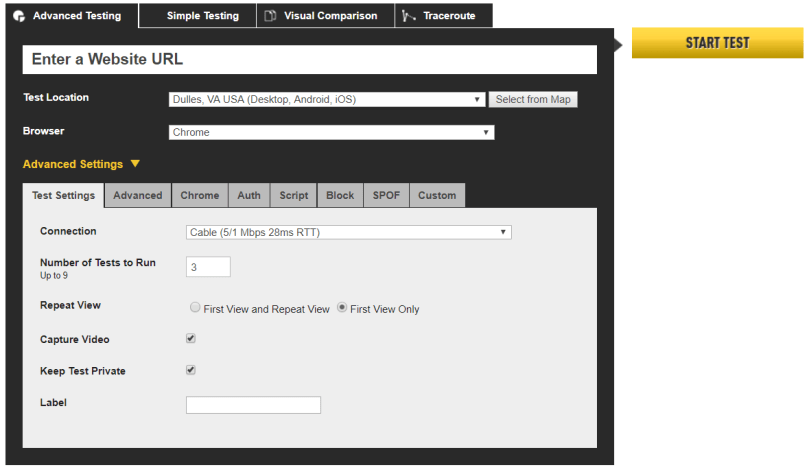
As alluded to above, one of the best tools around to monitor page load times is www.webpagetest.org.  On the testing side, it allows you to simulate the browser, location and in many cases the device used for the test.  This means you can check to see how your site fares on a desktop browser with a cable connection from Chrome, as well as a Galaxy S5 running Opera Mini on a slow 3G connection.  There are a slew of other settings that can be applied, such as custom headers, basic HTTP authentication, or even pointing to external domains to fake a failure to see how your site reacts.

WPT Testing

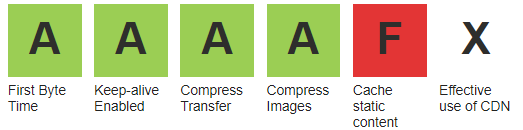
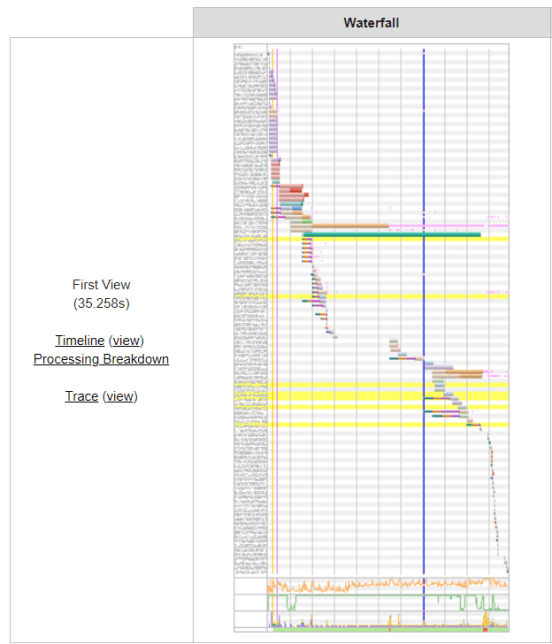
On the results side, there is everything from the Executive Dashboard style A-F rating for 6 categories, down to the exact waterfall chart that was the result of the request.  WPT Results Executive

Using this data it is possible to identify which individual requests are slowing down your page – this could be an unoptimized image, too many assets being downloaded or even a third party site being unavailable and blocking your page.

WPT Results Waterfall


Azure Application Insights

Application Performance Monitoring tools are a necessity with modern websites where there distributed dependencies, multiple servers and front end frameworks doing a large amount of processing.  There are a couple of big players in the market; New Relic and AppDynamics have been maturing into well rounded products for a few years, but Azure Application A is catching up quickly, and with more of a focus on .NET applications (although Java and Node.js are also supported), as well as integration with the greater Azure platform, it can provide a more rounded view of your application’s performance.

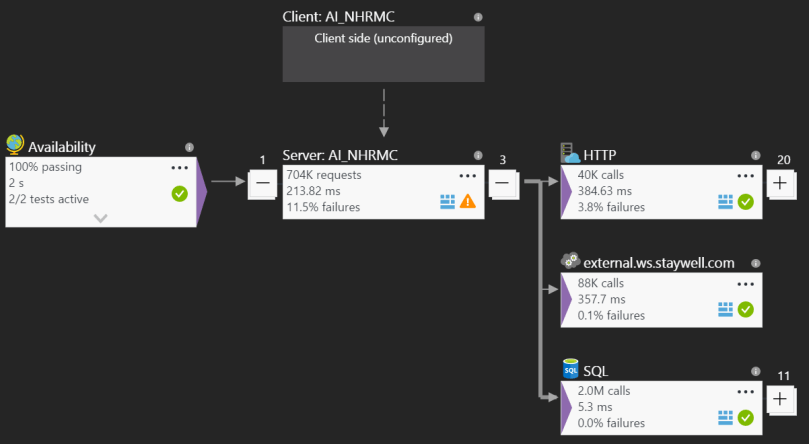
Application Map

application_map_microsoft_azure

Knowing what makes up your application can be complex, and often times may request unexpected resources.  The Application Map gives a graphical representation of requests coming into and out of your application, including outgoing HTTP requests, SQL requests, WCF service calls and more.  You get a high level view of any specific points that may be encountering issues, as well as average response times and the throughput – each of which can be early indicators of future problems, or even just the realization of organic growth of the application.

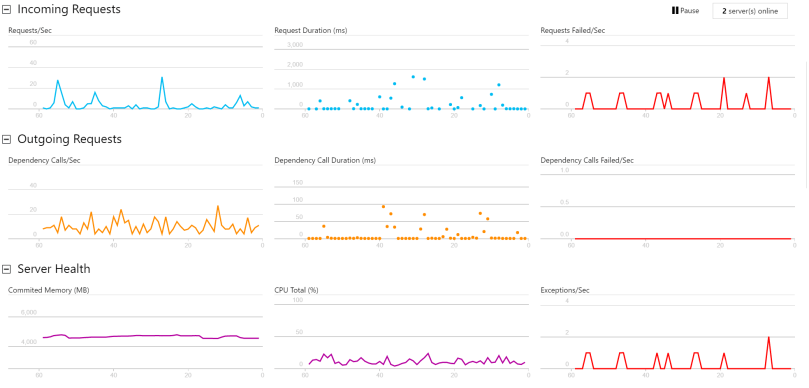
Live Metrics Stream

live_metrics_stream_microsoft_azure

Once you have deployed a new version of your application, you want to know if performance has changed, as well as any sneaky bugs that may have been introduced that are only noticeable with real world traffic.  The Live Metrics Stream gives you an up to the second view on the traffic going through your servers.  Out of the box it will provide information on the number of requests being served per second, as well as their duration and failure rates.  You can also see the traffic leaving your server to the dependencies notes above, and finally an aggregate view of the Memory, CPU and Exceptions being handled by your servers.  All this information can provide vital diagnostics on whether to pull a new release or not, as well as whether further investigation is required.

Smart Detection

One of the best tools within Application Insights is Smart Detection.  This is a completely passive service that requires no configuration, but will silently monitor your application data and proactively alert you via email if there is something unexpected happening.  This includes a sudden spike in error messages, or a change in the pattern of client or server performance.  These kinds of alerts are tremendously useful, as they mean you’re not relying on someone within your company, or worse, your client, telling you that something isn’t working correctly.

Log Analytics

The Application Insights team has provided a number of log utility extensions that integrate with Application Insights, to be able to get a centralized view of logs, which can be used for post-mortem analysis of a problem, or even for generating live dashboards. One of these extensions, which is hugely useful for Sitecore, is the log4net appender.  It works as an additional appender for the one shipped with Sitecore, and allows you to send your log files to Application Insights, as well as logging to disk.

Other features

As with any good APM tool, it is also possible to dig into data for slow pages, common exceptions, even the browser performance, if you’ve enabled browser tracking via a javascript beacon.

Automating New Servers

Provisioning a new server used to be a long, expensive and drawn out process, including shipping new hardware, installing it in the datacenter and cabling before even powering the box on to configure the software element.  This took a step forwards with the adoption of using virtual machines to mitigate the new hardware aspect, but still required specialist knowledge to configure the VM (especially if it was an on-premises server farm).  The explosion in Cloud Computing, with offerings from Amazon, Microsoft, Rackspace and others, means that it is possible to get up and running with a new Virtual Machine in a matter of minutes, with very little technical expertise required.  Investing relatively little time up front can automate the remaining configuration and provide an interface that means ownership of an entire process can be delegated to teams of varying skill sets.  This also provides the autonomy required for an Agile process to succeed.

In this post I’m going to walk through some specific aspects of Microsoft’s Azure platform and how they can be utilized to spin up a new server with all the dependencies to run a Sitecore site.

The Azure Portal is a great UI for managing individual resources, however when starting to build out a new environment, or make change in bulk, it is not the best tool.  This is where Azure Powershell comes into its own.  There are many ways to integrate with Azure APIs – they are just REST endpoints after all, and if you’re more comfortable writing C#, there are SDKs on NuGet, but powershell lends itself to a DevOps culture as it spans the programming knowledge of a Development team, while also incorporating the knowledge that is embedded in Ops team.

The Azure Resource Manager is the ‘new’ way of creating and managing resources created in the Azure Cloud.  ARM templates are a way of defining a single resource, or an interlinked number of resources together in a JSON format.  This allows you to create anything from a single public IP up to an entire environment, with multiple servers, load balancers, SQL PaaS instances and so on.   The Azure Portal will even generate a file based on existing resources that can then be parameterized to be more generic.

An ARM template is made up, mostly, of 3 properties that take an array of objects;

  • Parameters – values passed into the template to customize it for the resource being deployed.
  • Variables – often made up of concatenations of parameters or the result of functions, variables simplify the overall structure of the template.
  • Resources – the definition of the resources to be created. These can reference variables and parameters, as well as other resources.

When defining a Virtual Machine, it is important to consider the cascading dependencies that are required – at the most basic level, you’ll need a storage device for the OS and a network interface.  The network interface will need public and private IP addresses as well as a Network Security Group (essentially a representation of firewall rules) and subnet.  This could also be made to be more complex to include Availability Sets, multiple disks and NICs etc.

Many items will be unique and distinct for a new VM – the Disks, IPs and NICs for example would never be shared between VMs.  A Network Security Group or a subnet, however, could well be shared across a number of machines.  At this point it is wise to decide if you will manage your infrastructure fully through ARM templates, through the portal or as a hybrid approach.  The reason this decision is important is because when deploying a resource via the ARM templates, if a dependent resource already exists in the Azure environment, it will be modified to match the template.  If you consider a Network Security Group that is defined in an ARM template, if someone goes and modifies that Group via the portal, and they do not update the template, the next time the template is used to create a resource, the change will be reverted.

A simple workaround for this is to not define all dependent resources in the ARM template, but to reference some things by ID. While the template is JSON formatted, it is possible to reference standard functions that are understood by the ARM infrastructure.  One of these is the resourceId() function, which accepts two parameters – the type of resources, and the name.  This will return the Azure ID for that resource, which can be used as a reference for new resources.

This simplifies the creation of a single server, and gives massive efficiency improvements when creating multiple servers.  There are also a large number of extensions that can be applied that automate many post-initialization tasks.  One of the most helpful out of the box is the JsonADDomainExtension which, as the name implies, connects the server to a Domain by providing a Domain Admin account – these can, and should, be parameters passed into the script.

It is also possible to enable custom extensions which can run a file stored in blob storage – this could be another Powershell script, an executable or a batch file.  The script/executable is downloaded and launched directly on the server, so it is possible to write scripts as if you were running them locally. We use this to add an AD group to the local Admin group on the server, install Windows features, set the time zone, and install common tools via chocolatey.

Once you have your json template defined, creating the new resources is a trivial task;

$resourceGroupName = "<your resourc egroup>"
$templateFilePath = "<Path to your json template>
$params = @{
     storageAccountName="<your account name>";
     adminPassword="a$ecurepa$$word";
     adminusername="<admin username>";
     vmName="<VMName>";
     vmSize="<VMSize>"
}
New-AzureRmResourceGroupDeployment -ResourceGroupName $resourceGroupName -TemplateFile $templateFilePath -TemplateParameterObject $params -Mode Incremental -Name $vmName;

These values can be, generally, anything you want them to be.  The exception to this is the vm size, which must match a value from the currently offered list of VMs, found here

Restoring Standardized Backups

As I’ve mentioned before, enabling scrum teams to be self-sufficient is vital to increasing velocity – if there is a need for a new environment, it should be a trivial task to get one created, not a red-tape filled nightmare where knowledge is centralized on a handful of people.  However, it is also unrealistic to believe that all developers will have all the knowledge to complete this task – one would have to be familiar with IIS, SQL, DNS, whatever cloud offering is being used (if any) not to mention how all these elements fit together to be able to troubleshoot something not working.

Fortunately, with a little standardization and access to a Powershell prompt, it is possible to automate almost all of the steps required.  In this post I’ll go over the main parts of what is required to get a new  Sitecore site up configured and running.

Breaking down the entire process, we will need to do the following things (at least, there may be more for your specific scenario):

  • Create the website folders under inetpub and setting permissions
  • Create the website definition in IIS
  • Restore the database backups
  • Update connection strings
  • Apply a patch file to update the data folder

Creating website folders

New-Item -ItemType "Directory" -Path "$inetpubRoot\$siteName"

$Acl = Get-Acl "$inetpubRoot\$siteName"
$Ar = New-Object System.Security.AccessControl.FileSystemAccessRule("BUILTIN\IIS_IUSRS", "FullControl", "ContainerInherit,ObjectInherit", "None", "Allow")

$Acl.SetAccessRule($Ar)
Set-Acl "$inetpubRoot\$siteName" $Acl

if((Test-Path "$inetpubRoot\$siteName\Website") -eq $false) {
     New-Item -ItemType "Directory" -Path "$inetpubRoot\$siteName\Website"
}
if((Test-Path "$inetpubRoot\$siteName\Data") -eq $false) {
     New-Item -ItemType "Directory" -Path "$inetpubRoot\$siteName\Data"
}

In the code above there are 2 pre-defined variables – $inetbubRoot, which is that path to where you want the website created – C:\inetpub\wwwroot when working locally – and $siteName, which is the folder you want created.

There are also a couple of lines relating to giving the IIS_IUSRS built in account Full Control over the folder we just created.  Full Control gives Sitecore the ability to create folders required, as well as creating log and index files (among many others).

Creating IIS definitions

New-Item IIS:\AppPools\$siteName -Force 
New-Item IIS:\Sites\$siteName -bindings @{protocol="http";bindingInformation="*:80:$siteName"} -physicalPath "$inetpubRoot\$siteName\Website" -Force 
Set-ItemProperty IIS:\Sites\$siteName -name applicationPool -value $siteName -Force

Here we make use of some IIS Powershell cmdlets to create a new application pool, create a new site definition and bind the desired hostname (also defined by the $siteName variable for consistency between folder structure and IIS), and finally associate the site definition to the application pool.

Restoring database backups

This step is likely to be quite specific to your particular setup.  In this example, we are restoring .bacpac files to Azure SQL PaaS, however you may be restoring to an On Prem instance of SQL Server, or restoring .bak files.  You could even take this further and, if using Azure SQL, could associate the restored database with an Elastic Pool.

 if((Get-AzureRmSqlDatabase -ResourceGroupName $resourceGroupName -ServerName $sqlServer | Where-Object {$_.DatabaseName -eq $dbName}).count -eq 1) {
     Remove-AzureRmSqlDatabase -ResourceGroupName $resourceGroupName -ServerName $sqlServer -Databasename $dbName -Force | Out-Null
}
New-AzureRmSqlDatabaseImport -ResourceGroupName $resourceGroupName -ServerName $sqlServer -DatabaseName $dbName -StorageKey "" -StorageKeyType "StorageAccessKey" -StorageUri $path -Edition Premium -ServiceObjectiveName P4 -DatabaseMaxSizeBytes 300000000 -AdministratorLogin  -AdministratorLoginPassword

Working with Azure is a simple task most of the time, and restoring backups is no exception, albeit with one quirk – it is not possible to overwrite a database, you have to remove it and re-import.  The code above will get a list of all databases on the provided server and check if you’re trying to overwrite something that already exists.  If it does, it will remove it first, then move on to the import.

Updating connection strings

This is probably one of the quirkiest parts of the restore process – it requires that you pass the password of your SQL user in as plain text, so it can be placed in the connection string, and managing the different types of connection strings (‘vanilla’ sql, Entity Framework, mongo) can also be a challenge.

Part of the solution to managing different connection strings is this block of Powershell

if($currentValue -match "^User Id\=")
{
     #Set standard connection string
}


if($currentValue -match "^mongodb:")
{
     #Set mongo connection string 
}

if($currentValue -match "^metadata\=res:")
{
     #Set Entity Framework connection string
}

Again, standardization of your database names can really help here to link the connection string node to the database.

Patch file

The final piece of the puzzle to restoring a Sitecore instance is to create a patch file that contains the new data folder, and potentially setting a hostName attribute for the default entry.  Again, depending on your specific setup, this may be harder to accomplish, but taking a simple Sitecore instance with one site defined, we can use a template patch file and a few lines of Powershell to complete the task.

$xml = [xml]$devserverxml
$ns = New-Object System.Xml.XmlNamespaceManager($xml.NameTable)
$ns.AddNamespace('patch','http://www.sitecore.net/xmlconfig/')
$nodes = $xml.SelectNodes("/configuration/sitecore/sc.variable[@name='dataFolder']/patch:attribute",$ns)
foreach($node in $nodes) {
     $node.InnerText = $dataFolder
}
$nodes = $xml.SelectNodes("/configuration/sitecore/sites/site[@name='website']/*")
foreach($node in $nodes) {
     $node.InnerText = $hostname
}
$xml.save($path)

This will load a file where the path is defined in $devserverxml into an XML object that can be traversed and updated.


Hopefully this article has helped as a starting point to automate some of the tedious tasks we face as developers.  As time goes on I’ll add new posts with more examples of how we’ve tackled some of the more inconvenient automation problems

Sitecore Backup Scripts

When working with any system one of the biggest challenges is having quick and simple access to production data.  This is even more significant when developing for a CMS, as the content is constantly changing.  Having recent backups available is vital for many reasons, such as having an accurate test environment for new features, being able to reproduce a bug found in production or even just setting up a new local instance for development.

Automation is key in the modern IT world – any repetitive task that takes a significant amount of time or effort is a candidate for automation.  IT Ops teams are invariably ahead of development teams with this as they need to provide backups of production systems for disaster recovery scenarios, so taking their knowledge and applying it to a developer’s problem seems appropriate.

What we have developed is a standardized approach to backups for all sites;

  • Create archives of the website and data folders, excluding unnecessary files
  • Use the SqlPackage.exe application to back up databases to .bacpac files
  • Store these in dedicated containers in Azure blob storage

This results in a discrete container of all the required fields to create a new running instance.  This standardization means it is possible to write scripts that are generic enough to get the backed up data and restore it across any number of completely independent sites, thus increasing productivity.

When backing up the Website and Data folders, there is a lot of ‘runtime’ data this isn’t required for a clean restore – logs, diagnostics, App_Data and temp combined can run up many GBs of transient data that adds bloat to a backup.  The sitecore_analytics_index can also grow to a massive size, and could be excluded if not required.

SqlPackage.exe is a utility that is shipped with many different products, including Visual Studio and SQL Server, as well as part of stand-alone utilities.  For a cloud-centric company, SqlPackage is an indispensable utility that enables the automation of moving data between on premises SQL Server and Azure SQL PaaS.  Simply passing a connection string, a filename and some basic parameters, is all it takes to export a database, and with access to the ConnectionStrings.config file in your sitecore solution, everything is right there for. In fact, getting an array of connection strings is a fairly trivial snippet of Powershell;

$connectionstrings = @()
$connectionStringsFilePath = Join-Path -Path $webSiteRoot -ChildPath "Website\App_Config\ConnectionStrings.config"
$xml = New-Object System.Xml.XmlDocument
[xml] $xml = Get-Content $connectionStringsFilePath
$xml.SelectNodes("/connectionStrings/add") | % { 
if(-not($_.connectionString.StartsWith("mongo"))) { return $_ } } | % {
     $connectionstrings += $_.connectionString
}

 You can then take this array and use it either with SqlPackage.exe or raw T-SQL to create the required backups and transfer them to a centralized repository.

Among other things to consider are;

  • Do you need to transfer the analytics data from Mongo?
  • Do you really need to transfer the reporting databases? Is this just more bloat to transfer and store?
  • How much are your bandwidth costs? If your VMs and Storage are within Azure, you won’t pay for data transfer, but if you straddle multiple cloud providers, you may get billed pretty heavily – remember to weigh the cost/benefit of having regular backups.